- Published on
How to route GitHub repos and GitLab projects to the right Slack channels
- Authors

- Name
- Maruan
If your team uses GitHub pull requests and GitLab merge requests, you have probably seen the same Slack problem: every repo posts into one channel. Frontend, backend, platform, and infra all land in #engineering or #gitlab, and nobody can tell which codebase needs attention.
Channel routing fixes that. With MergeMe, each GitHub repository or GitLab project maps to a default Slack channel. You can add label rules on top so bug fixes and documentation work route elsewhere. One workspace covers GitHub.com, GitLab.com, and self-hosted GitLab together.
The problem with a single Slack channel
The official GitHub and GitLab Slack apps were built for small teams with one main repo. They post a new Slack message for every event and send everything to the channel you picked during setup. There is no per-repository routing.
That breaks down fast when you have:
- A GitHub frontend repo and a GitLab backend monorepo
- Platform services on GitLab and libraries on GitHub
- Different squads who only care about their own merge requests
Dumping all PR/MR notifications into #general creates channel noise. People mute the channel, miss reviews, and stop trusting Slack for code review.
MergeMe takes a different approach: one updating card per pull request or merge request, edited in place, with channel mappings that decide where each card is posted.
What channel mappings do
A channel mapping connects one git project to one default Slack channel:
| Git source | You map | Default destination |
|---|---|---|
| GitHub.com | A repository from your App installation | A Slack channel, e.g. #frontend-reviews |
| GitLab.com | A project from your OAuth connection | A Slack channel, e.g. #backend-reviews |
| GitLab self-hosted | A project ID (manual webhook per project) | A Slack channel, e.g. #platform-mrs |
Events from unmapped projects are ignored. That keeps Slack focused on the repos your team actually reviews.
Optional label routing overrides the default channel when a PR or MR is first posted. For example, anything labelled bug can go to #bugs even if the repo default is #frontend-reviews.
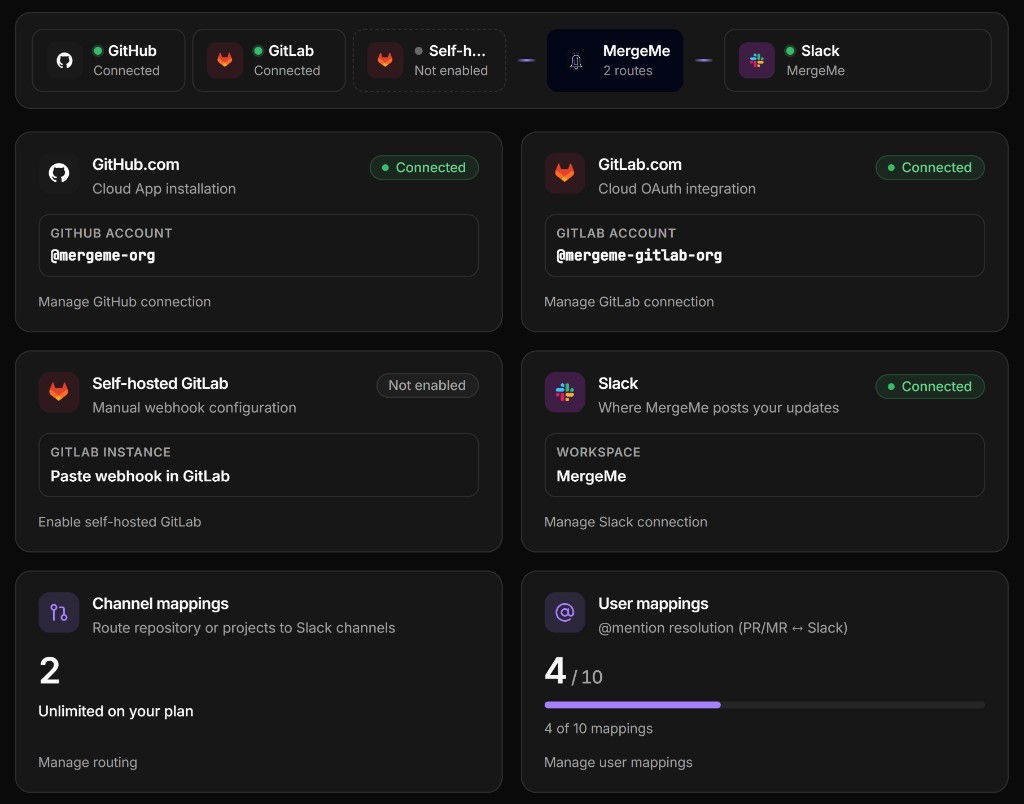
Multi-git example: frontend on GitHub, backend on GitLab
Mixed stacks are common. MergeMe handles them in one workspace without forcing you to pick a single git host.
A typical setup:
- Connect Slack under Sources so MergeMe knows where to post.
- Connect GitHub.com (GitHub App) and GitLab.com (OAuth), or add self-hosted GitLab webhooks later.
- Open Routing → Channel mappings and add one row per repo or project.
Example routes:
mergeme-org/frontend(GitHub) →#frontend-reviewsmergeme-gitlab-org/backend(GitLab) →#backend-reviews
Label rules on each mapping can send bug items to #bugs and documentation to #documentation, shared across both hosts.
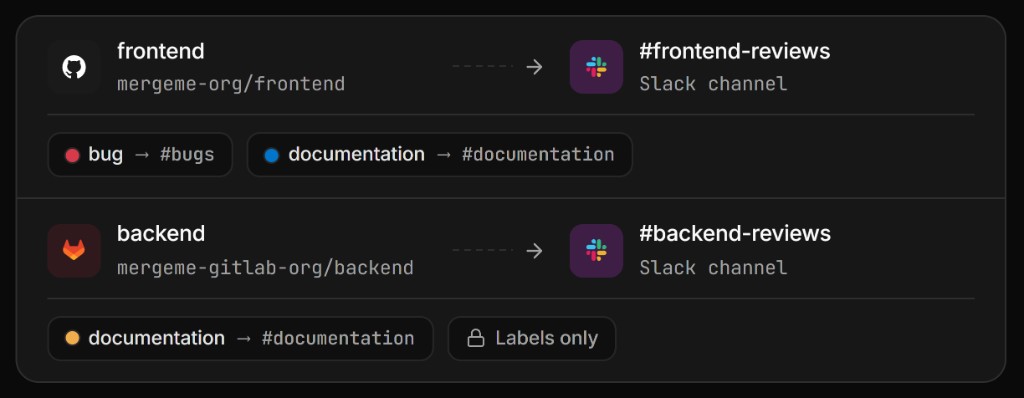
Each mapping is tagged by git source in the dashboard, so you always know whether a row is GitHub or GitLab.
Route every GitHub repo and GitLab project to the right Slack channel withper-repo channel mappings from MergeMe
Start freeHow to set up channel mappings
GitHub.com (~5 minutes)
- Sign in and create a workspace.
- Connect Slack and install the GitHub App for the org or account that owns your repos.
- Go to Routing → Channel mappings, pick a repository from the dropdown, choose a Slack channel, and save.
Full steps: GitHub setup guide.
GitLab.com (~5 minutes)
- Connect Slack and GitLab.com via OAuth in Sources.
- Open Routing → Channel mappings, select a project from the dropdown, pick a Slack channel, and save.
MergeMe registers webhooks on your GitLab projects automatically. Full steps: GitLab.com setup guide.
GitLab self-hosted (~10 minutes per project)
Self-hosted GitLab uses manual webhooks. For each project:
- Copy the webhook URL and signing token from MergeMe Sources.
- Add the webhook in GitLab (Settings → Webhooks), enable merge request and note events.
- In MergeMe, enter the project ID (under Settings → General in GitLab), pick a Slack channel, and save.
Full steps: Self-hosted GitLab setup guide.
You can add GitHub or GitLab.com later from Sources without creating a new workspace. See mixed GitHub and GitLab teams for how teams use this in practice.
Official Slack apps vs MergeMe channel routing
| Official GitHub / GitLab Slack apps | MergeMe | |
|---|---|---|
| Messages per PR/MR | New message for every event | One card, updated in place |
| Per-repo channel routing | No | Yes, via channel mappings |
| GitHub + GitLab in one workspace | No | Yes |
| Label-based channel override | No | Yes, per mapping |
| Self-hosted GitLab | Limited / varies | Yes, via manual webhook + project ID |
The official apps are fine for a single repo. Once you have multiple codebases or both GitHub and GitLab, channel routing is what keeps Slack usable.
For a deeper comparison, see official GitHub Slack app vs MergeMe and official GitLab Slack app vs MergeMe.
Label routing (optional next step)
Channel mappings set the default channel. Label routing refines it: when a PR or MR is first posted, MergeMe checks label rules on that mapping and can send the card to a different channel.
Use cases:
bug→#bugsacross frontend and backenddocumentation→#docsfor tech writing visibilitysecurity→#security-reviewswithout a separate webhook
Configure label rules on each mapping row in the dashboard. Details: label routing docs.
FAQ
How is MergeMe different from the official GitHub or GitLab Slack app?
The official apps post a new Slack message for every event and cannot route each repository to its own channel. MergeMe keeps one updating card per PR/MR and lets you map each GitHub repo or GitLab project to a dedicated Slack channel.
Does MergeMe support both GitHub and GitLab in one workspace?
Yes. Connect GitHub.com, GitLab.com, and self-hosted GitLab in the same workspace. Each channel mapping is tagged by git source, so a GitHub frontend and a GitLab backend can route to different channels from one place.
Does MergeMe work with self-hosted GitLab?
Yes. Add a manual webhook per GitLab project, then create a channel mapping with the project ID. See the self-hosted GitLab setup guide.
How many Slack messages does MergeMe send per merge request?
One main card per PR or MR. Status changes (approved, changes requested, merged, and so on) update that card instead of posting new messages. Review comments appear as thread replies on the same card.
Does MergeMe read my source code?
No. MergeMe processes webhook payloads from GitHub and GitLab (metadata about PRs/MRs, labels, reviewers, and comments). It does not clone or read private repositories.
How much does MergeMe cost?
The Hobby plan is free and includes 1 channel mapping and 5 user mappings. The Team plan starts from £5 per developer seat per month (10-seat minimum) with unlimited channel mappings and multi-git. See pricing.
Get started
- Documentation: install guides, routing, and webhooks
- Routing overview: channel mappings, user mappings, and preferences
- Start free: connect GitHub, GitLab, and Slack in about five minutes
Route your next pull request and merge request to the channel your team actually watches.